Real-time Feed
The feed displays in real-time all the items detected by your active filters.
Accessing the Feed
The feed is the dashboard's main page. It displays in real-time all the items detected by your active filters.
Go to /feed (the dashboard home page).
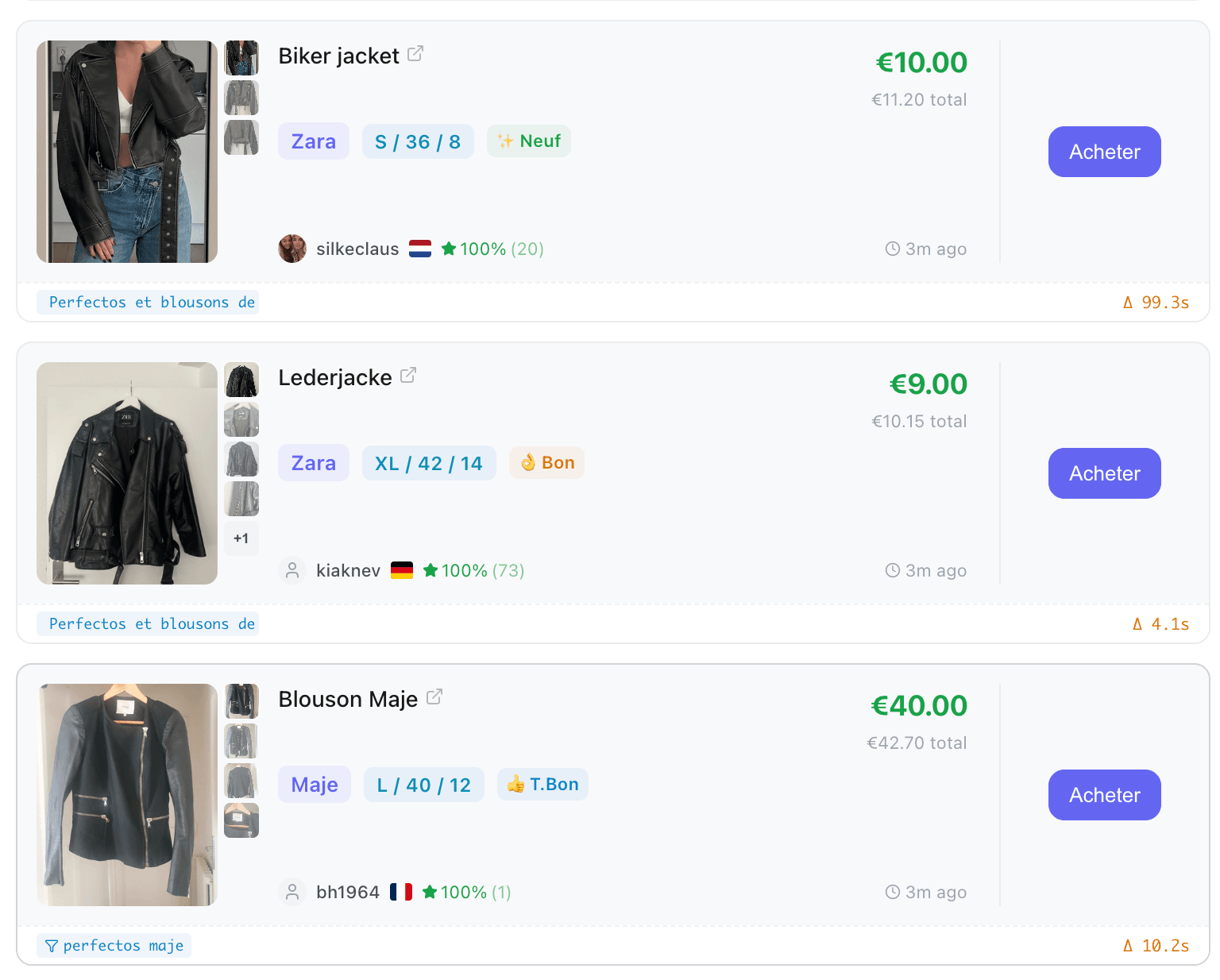
Understanding Product Cards
Each detected item appears as a card featuring:
- The item's photo
- The title and details (brand, size, condition)
- The price
- The filter that detected it
- The item's status
Item Statuses
| Icon | Status | Meaning |
|---|---|---|
| pending | Verifying | The autocop is verifying availability |
| check | Available | The item is available for purchase |
| locked | Sold | The item has been purchased |
| cross | Removed | The listing was removed by the seller |
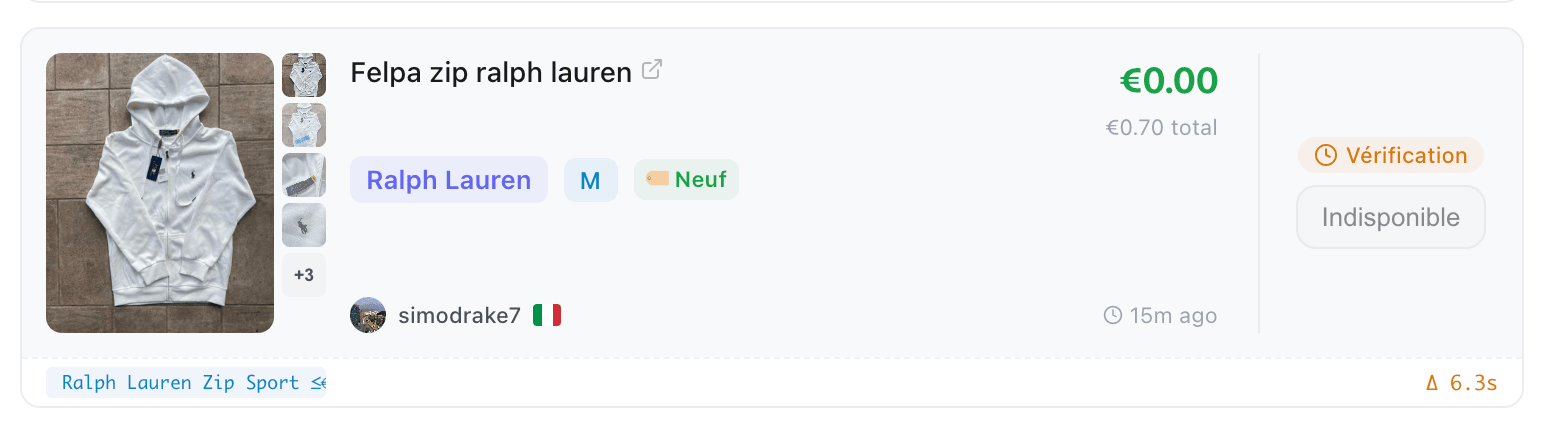
How status monitoring works
When a product appears in your feed, Kops doesn't just show it and forget about it — it actively monitors each item to keep you informed of what's happening in real time.
As soon as a product appears in your feed, Kops starts watching it for 30 seconds to detect if someone buys it.
During this window, the system checks multiple times whether the item has been purchased. If it detects a sale, the card updates instantly with a locked Sold badge — no need to refresh.
Tip: This is especially useful when autocop is active. If another buyer grabs the item before you, you'll see the "Sold" badge appear within seconds.
After the 30-second window, the sold detection for that item ends. If the item was sold later (for example, after several minutes), the status may not update automatically.
All status changes are pushed to your feed in real time. When Kops detects that an item's status changed (sold, available, or removed), your card updates instantly without any action on your part.
This also works across page reloads — if you refresh your feed, items that were detected as sold will still show the correct locked Sold badge.
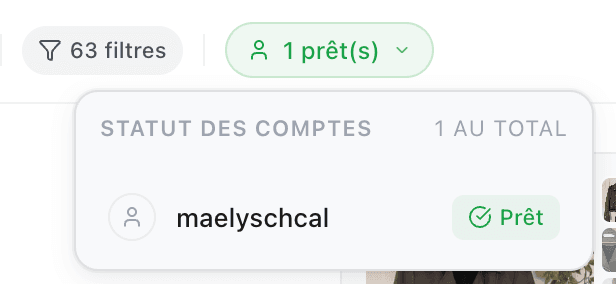
Account Statuses
The account status menu shows you how many of your accounts are active, quarantined, or inactive.
Enabling and Disabling Autocop
Autocop works with two levels of control:
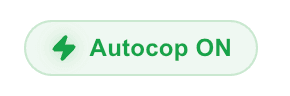
The Autocop toggle at the top right of the feed acts as a master switch. It enables or disables automatic purchasing for all your filters at the same time.
- Enabled (green): Autocop is ready to operate.
- Disabled: No automatic purchases will be made, even if your filters have autocop enabled individually.
No Active Filters
You don't have any active filters yet. Create your first filters from the Filters page.
Waiting for Items...
Filters are active, but no items have been detected yet. Please wait — items will appear in real-time.