Purchase Attempts
Track every purchase attempt made by the autocop with full details.
Introduction
The Attempts page is your logbook. It tracks every purchase attempt made by the autocop, whether successful or not, with a complete breakdown of what happened.
Accessing the Attempts Page
Go to /attempts from the menu.
Understanding the Table
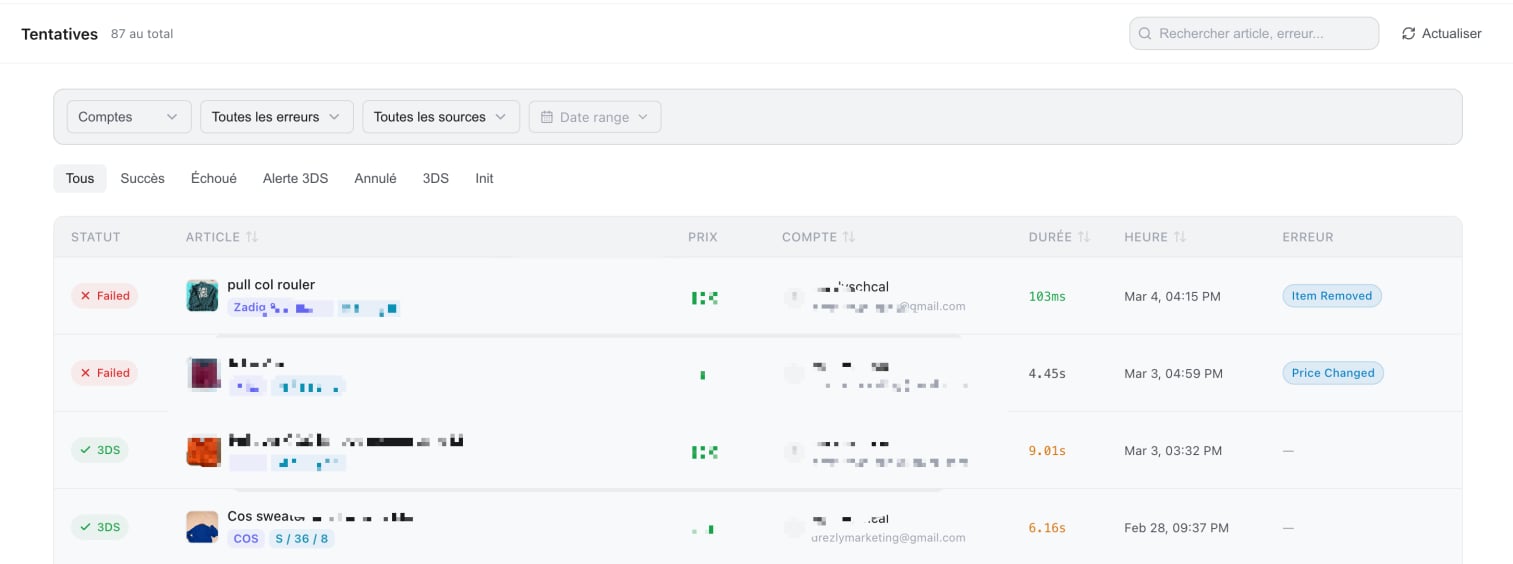
Each row represents a purchase attempt with the following columns:
| Column | Description |
|---|---|
| Status | Result of the attempt (see below) |
| Item | Photo, title, brand, and size of the product |
| Price | Item price at the time of the attempt |
| Account | Vinted account used for the attempt |
| Duration | Time elapsed between the start and end of the attempt |
| Date | Date and time of the attempt |
| Error | Type of error if the attempt failed |
Attempt Statuses
| Status | Meaning |
|---|---|
| check SUCCESS | Purchase successful |
| cross FAILED | Attempt failed (see the Error column) |
| warning WARN | Successful but with warnings |
| blocked CANCELLED | Attempt cancelled |
| locked 3DS REQUIRED | 3D Secure verification required by the bank |
| pending INIT | Attempt initialization in progress |
When an attempt fails, a colored error icon appears in the Error column. Hover over it to see the description and a suggested resolution.
| Category | Example Errors |
|---|---|
| Auth | Token expired, invalid session |
| Captcha | Blocked by Vinted captcha |
| Payment | Card declined, 3DS required |
| Fraud | Account flagged for suspicious activity |
| Shipping | Issue with address or delivery method |
| Availability | Item was sold in the meantime |
| Rate limit | Too many requests (account temporarily blocked) |
| Access | Account restricted or banned |
| Network | Connection issue |
| Internal | Error on Kops' side |
| External | Error on Vinted's side |
Attempt Details
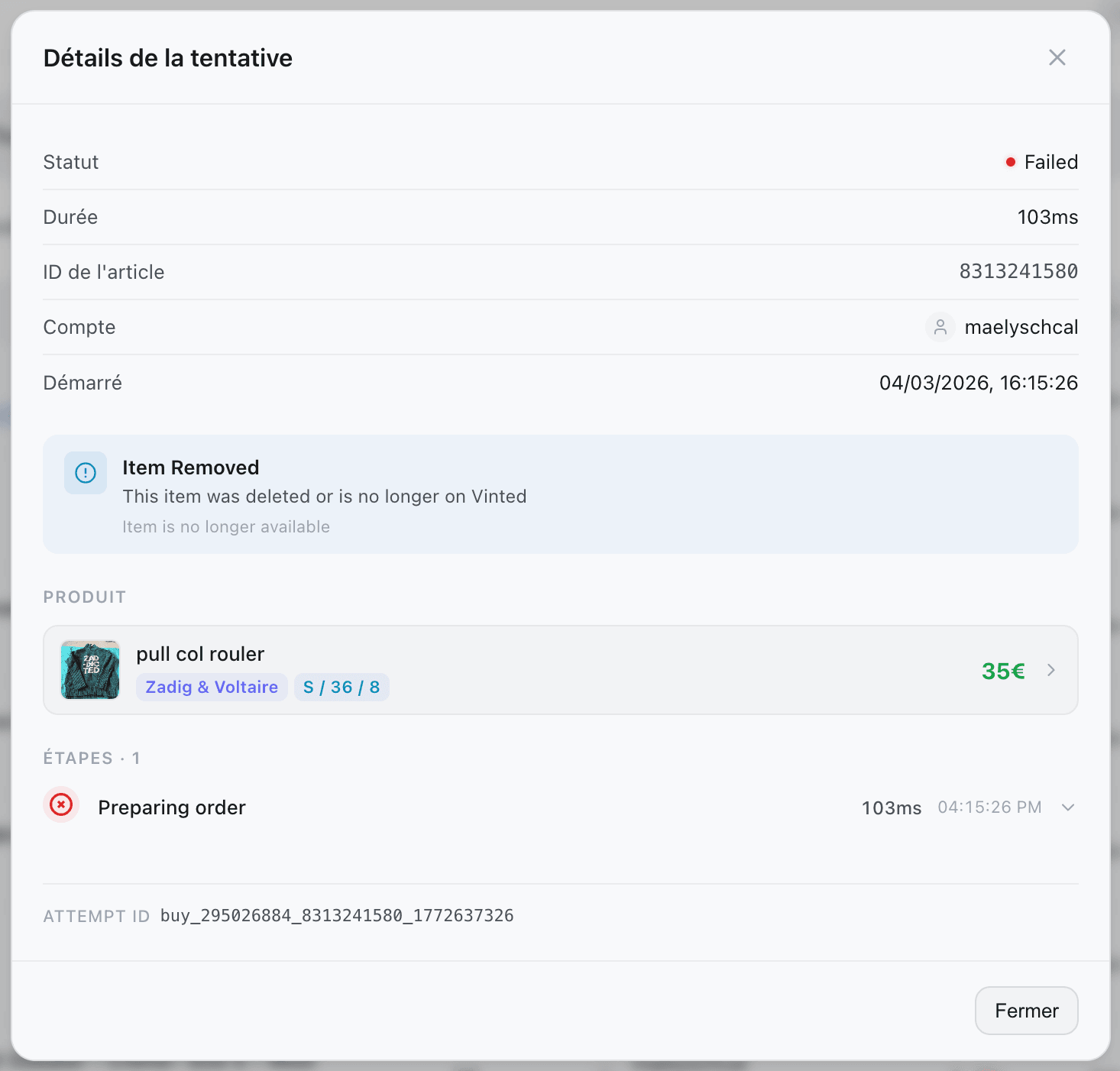
Click on any row to open the attempt details pop-up.
There you will find:
- Full item information (photo, description)
- A step-by-step timeline of the attempt
- Precise error messages
- The account used and the duration of each step