Creating and Configuring Filters
Filters define the criteria of the items you want to purchase automatically.
Introduction
Filters are the foundation of Kops. Each filter defines the criteria for an item you want to purchase automatically. The autocop continuously monitors all your active filters and attempts to purchase as soon as a matching item appears.
Accessing the Filters Page
Go to /filters from the sidebar menu.
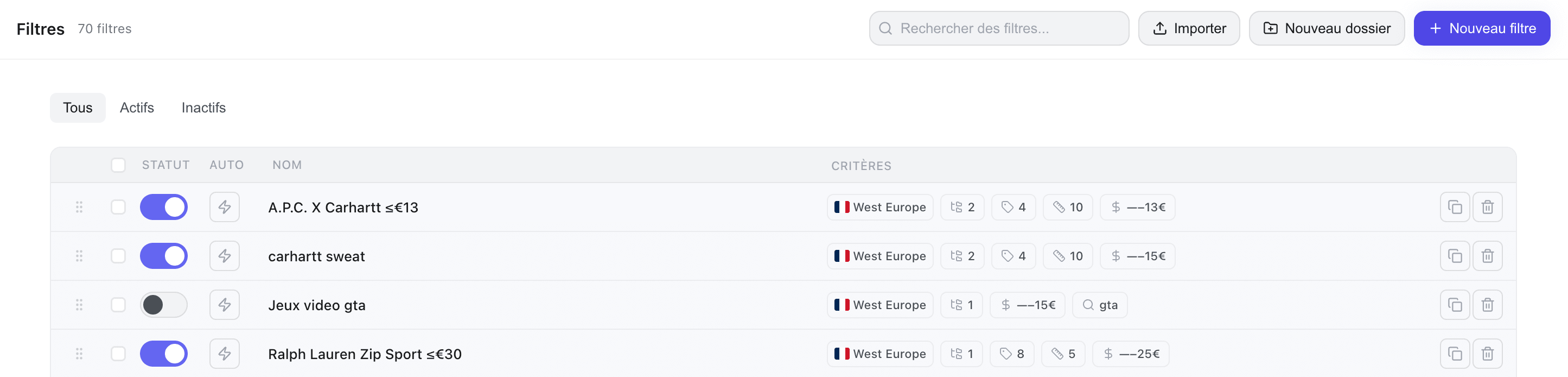
Creating a Filter
Click on "+ New Filter" at the top right.
The creation modal opens with several configurable sections.
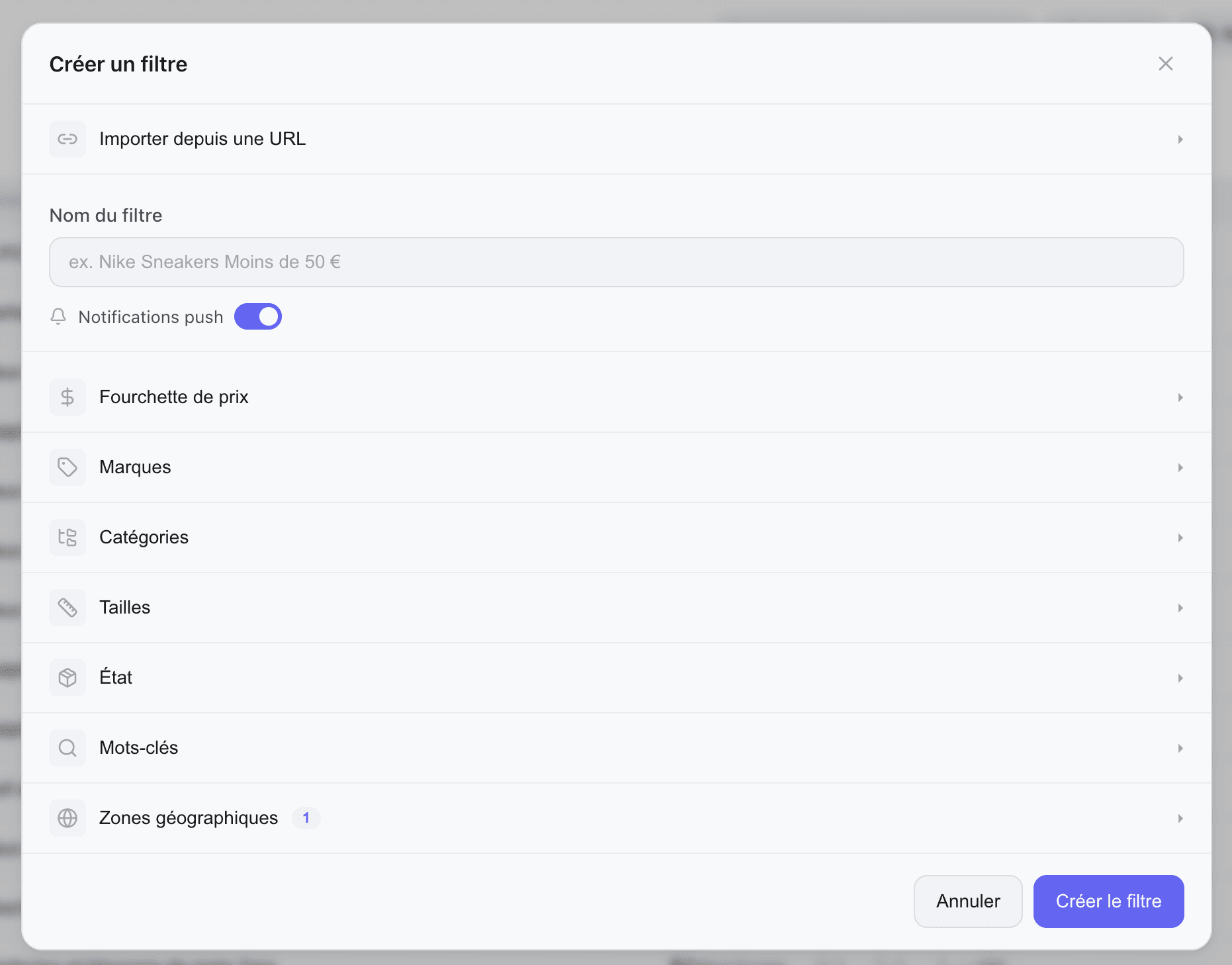
Importing from a Vinted URL
Do you already have a saved search on Vinted? Paste its URL to automatically import the criteria.
- Expand the "Import from URL" section
- Paste the URL of your Vinted search
- Click on "Import"
The following fields are filled automatically: categories, brands, sizes, condition, price, video games.
Filter Configuration
Filter Name
Give your filter a descriptive name (e.g., "Nike Air Max 90 < 80€").
Price
Set a price range in euros.
- Min: minimum price (leave empty = no minimum)
- Max: maximum price (leave empty = no maximum)
Brands
Search and select one or more brands.
- Type the beginning of the brand name in the search field
- Select from the suggestions
- Repeat to add other brands
Condition
Filter by item condition:
- New with tags
- New without tags
- Very good
- Good
- Satisfactory
- Some parts not working
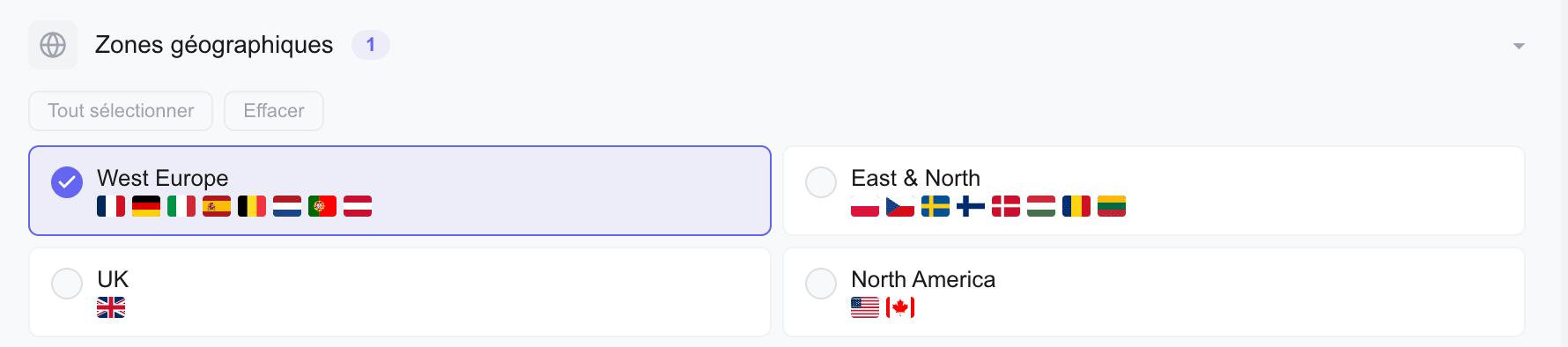
Saving the Filter
Click on "Create filter" (or "Save changes" for an existing filter).
Enabling and Disabling a Filter
From the filter list, use the toggle on each row to enable or disable a filter without deleting it.
A disabled filter stops working completely: it no longer detects any items and the autocop no longer monitors it.
Enabling Autocop on a Filter
In addition to the activation toggle, each filter has a dedicated autocop toggle. This lets you keep a filter active (it detects items in the feed) while disabling automatic purchasing.
- Filter enabled + autocop enabled: items are detected and purchased automatically
- Filter enabled + autocop disabled: items are detected but you buy manually
- Filter disabled: no detection or purchase
Reminder: Per-filter autocop only works if the global autocop button on the Feed page is also enabled (see Real-time Feed).
Filter Folders
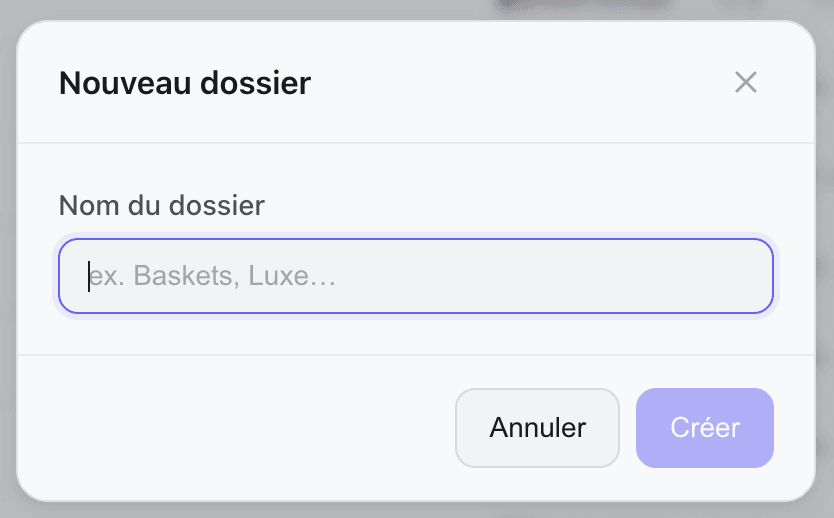
You can organize your filters into folders to group them by topic.
Click on "+ New folder" and give it a name. Drag and drop a filter into a folder from the list. You can also reorganize filters within a folder using drag & drop.
Duplicating and Deleting Filters
- Duplicate: Click the Copy icon on a filter row to create an identical copy. Useful for creating variations.
- Delete: Click the delete icon on the filter row. A confirmation will be requested.
Mass Import
You can import multiple filters at once via "Mass import" (upload icon). Useful for migrating from another tool or quickly configuring a large number of filters.
- Export your filters from the Kops Filter Exporter Chrome extension
- Click "Mass import" on the Filters page
- Drag and drop the CSV file or click to select it
- Review the preview: names, brands, categories, prices, zones are shown
- Confirm the import
The CSV file must contain at least a name column. The following columns are automatically recognized:
| Column | Description | Example |
|---|---|---|
name | Filter name (required) | "Nike Air Max 90" |
search_text | Search text (main keyword) | "air max" |
catalog_ids | Vinted category IDs (separated by |) | "4 | 1206" |
brand_ids | Brand IDs (separated by |) | "53 | 14" |
country_ids | Vinted country IDs (converted to zones) | "16 | 19" |
size_ids | Size IDs | "208 | 209" |
status_ids | Condition IDs (new, good, etc.) | "6 | 1" |
price_from / price_to | Price range | "10" / "80" |
autocop | Enable autocop (yes/no) | "yes" |
enabled | Filter active (yes/no) | "yes" |
Limit: 1000 filters maximum per import.
Chrome Extension
You can export your filters from the extension downloadable here:
https://chromewebstore.google.com/detail/kops-filter-exporter/mbdpmogocbigcjghpdlcckplhjnbhand